




 English
 русский
 中文
 español
 português
- Mining Pools
- QUAI Pool
- How To Start

How To Start Mining Quai KAWPOW SOLO
stratum+tcp://eu.quaikawpowsolo.k1pool.com:3354
x
| Device | Difficulty | TCP | SSL |
|---|---|---|---|
| difficulty 2 | 2 | ||
| difficulty 2 | 2 | TCP + SSLeu.kawpow.k1pool.com | |
| Device | Difficulty | TCP | SSL |
|---|---|---|---|
| difficulty 2 | 2 | ||
| difficulty 2 | 2 | TCP + SSLus.kawpow.k1pool.com | |
| Device | Difficulty | TCP | SSL |
|---|---|---|---|
| difficulty 2 | 2 | ||
| difficulty 2 | 2 | TCP + SSLcn.kawpow.k1pool.com | |
| Device | Difficulty | TCP | SSL |
|---|---|---|---|
| difficulty 2 | 2 | ||
| difficulty 2 | 2 | TCP + SSLru.kawpow.k1pool.org | |
First time? Step by step
Your Kr wallet
Create an account to get a Kr wallet: one internal wallet for all pools. Mining without an account is not supported.
Step-by-step setup
 HiveOS
TT-Miner -c KAW -P [email protected]:3354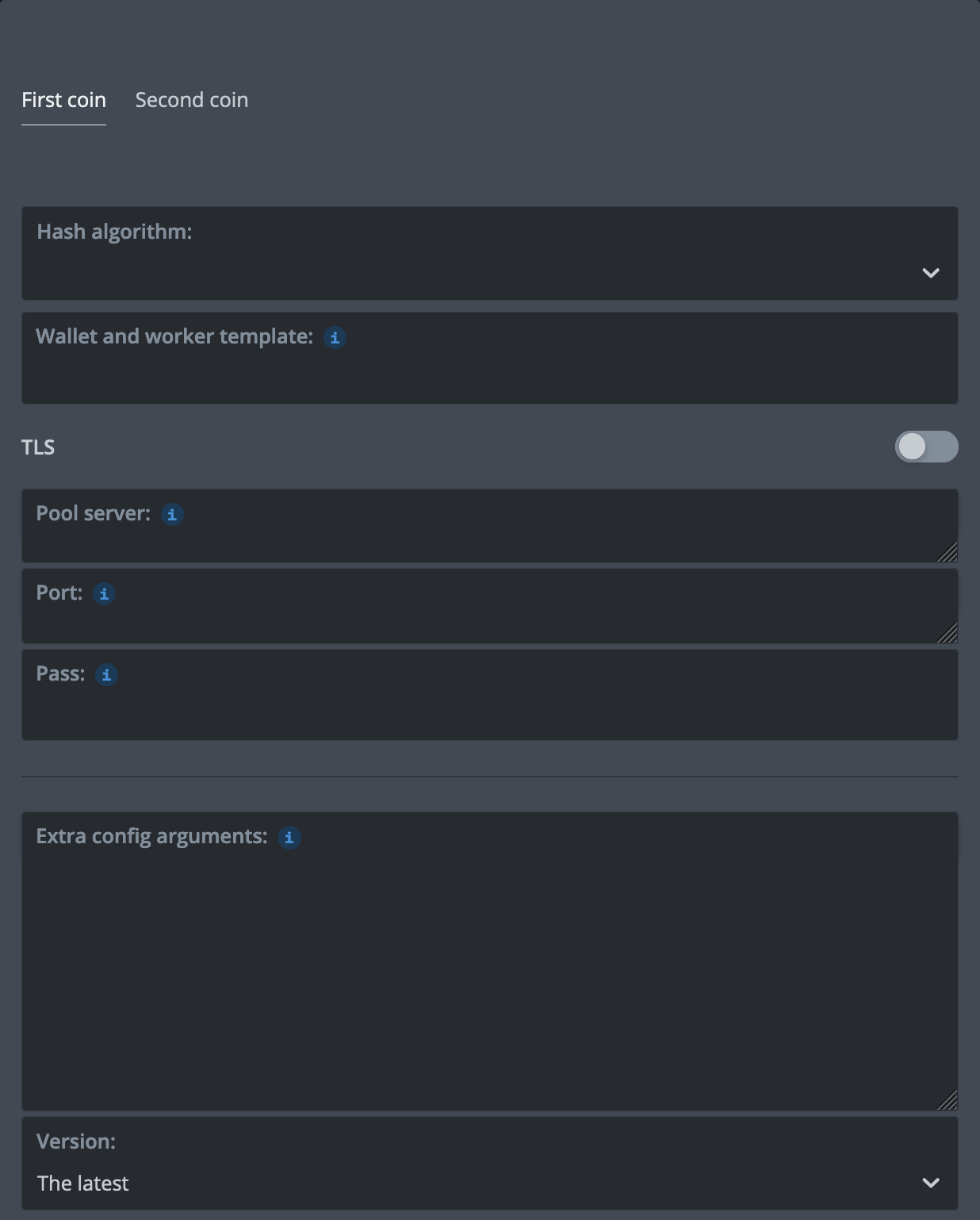
%WAL% - your K1Pool wallet Kr_WALLET, add it in HiveOS%URL_HOST%, %URL_PORT%, %URL% - select Pool 'k1pool' and Server when adding New Flight Sheet
TT-Miner -c KAW -P [email protected]:5100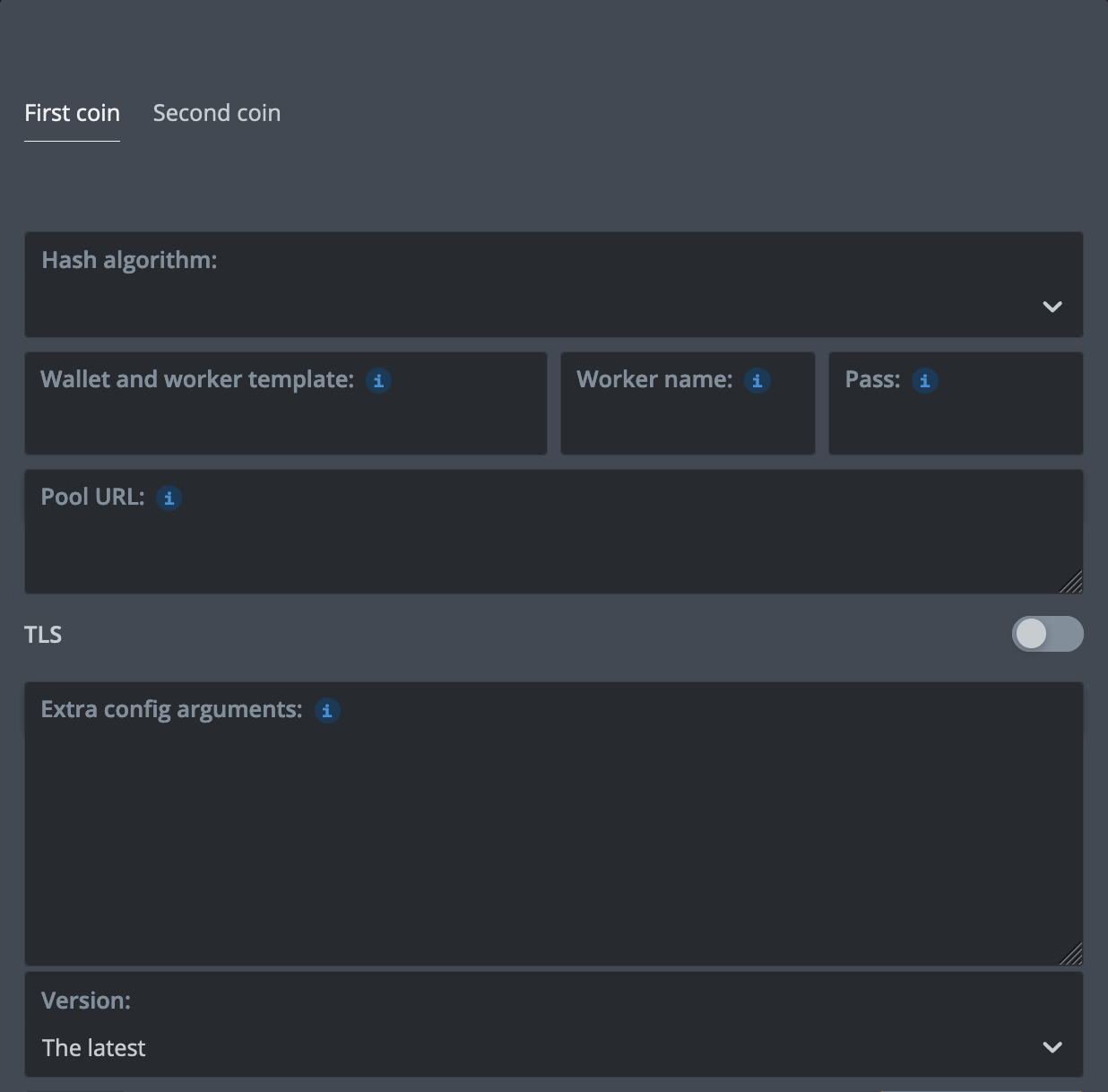
%WAL% - your K1Pool wallet Kr_WALLET, add it in HiveOS%URL_HOST%, %URL_PORT%, %URL% - select Pool 'k1pool' and Server when adding New Flight Sheet
The switcher is designed to easily and quickly switch KAWPOW coins on a site. That mean with one click you can jump from one coin to another without modifying any settings inside your device.
1. Select proper stratum server and port for mining
2. Start mining
3. Switch your device to any KAWPOW coin that is available on the K1Pool. Switch page can be found here: Workers and Switching
Step 1 - Register
Step 2 - Download mining software
 Windows OS: Download the ready-to-use version of miners (archive password: k1pool).
If you downloaded miners.zip from the link, extract it and replace Kr_WALLET in the .bat file with the account address you received in Step 1.
If you want, you can change RIG_NAME in the .bat file. This rig name will then appear on the miner statistics page. However, this step is optional.
The length of RIG_NAME should not exceed 32 characters and can only include Latin letters, numbers from 0-9, as well as "_" and "-".
Step 3 - Check the mining status
Structured mining data is available on the Dashboard page, where activity across all coins is displayed.
Step 4 - Getting Started with Cryptocurrency Payouts (QUAI)
To start receiving payouts from the pool, create a QUAI wallet on one of the cryptocurrency exchanges:
After creating a QUAI wallet, add it on the Wallets page on our website. Don’t forget to set the minimum payout threshold. The pool fee field can be left empty. By default, the pool fee is 1%. Please confirm your wallet address via email. On the statistics page My stats , you can view your confirmed balance and the progress bar towards the payout threshold. Once the progress bar reaches 100%, the payout will be made according to the payout interval. QUAI payouts are processed once every 6 hours.
Additional options:
You can also create a QUAI wallet on the official Quai KAWPOW SOLO website and set it up directly on your operating system.
Step 5 - Still have questions? We’ll help you find the answer!
Step 6 - Setup Payout Wallet (QUAI)
After that enter your QUAI address (wallet) on Wallets page for payouts.
Hash Power Rental Services
Our pool works with Hash Power rental services Miningrigrentals.com and NiceHash.com.
Settings for NiceHash.com:
Custom pool name: K1Pool QUAIKAWPOWSOLO
Algorithm: KAWPOW
Stratum hostname or IP: eu.quaikawpowsolo.k1pool.com
Port: 3354
Username: Kr_WALLET
Password: x
Settings for Miningrigrentals.com:
Name: K1Pool QUAIKAWPOWSOLO
Type: KawPOW (RVN)
Pool Host: eu.quaikawpowsolo.k1pool.com:3354
Workername (-u): Kr_WALLET
Password (-p): x