




 English
 русский
 中文
 español
 português
- Mining Pools
- XEL Pool
- How To Start

How To Start Mining Xelis
Your Kr wallet
Create an account to get a Kr wallet: one internal wallet for all pools. Mining without an account is not supported.
Pool address
stratum+tcp://eu.xel.k1pool.com:9351
Kr_WALLET.rig1
x
All portseu.xel.k1pool.com
| Device | Difficulty | TCP | SSL |
|---|---|---|---|
| GPU Stratumdifficulty 2M | 2M | ||
| CPU Stratumdifficulty 1M | 1M | — |
| Device | Difficulty | TCP | SSL |
|---|---|---|---|
| GPU Stratumdifficulty 2M | 2M | — | |
| CPU Stratumdifficulty 1M | 1M | — |
| Device | Difficulty | TCP | SSL |
|---|---|---|---|
| GPU Stratumdifficulty 2M | 2M | — | |
| CPU Stratumdifficulty 1M | 1M | — |
| Device | Difficulty | TCP | SSL |
|---|---|---|---|
| GPU Stratumdifficulty 2M | 2M | — | |
| CPU Stratumdifficulty 1M | 1M | — |
Step-by-step setup
 HiveOS
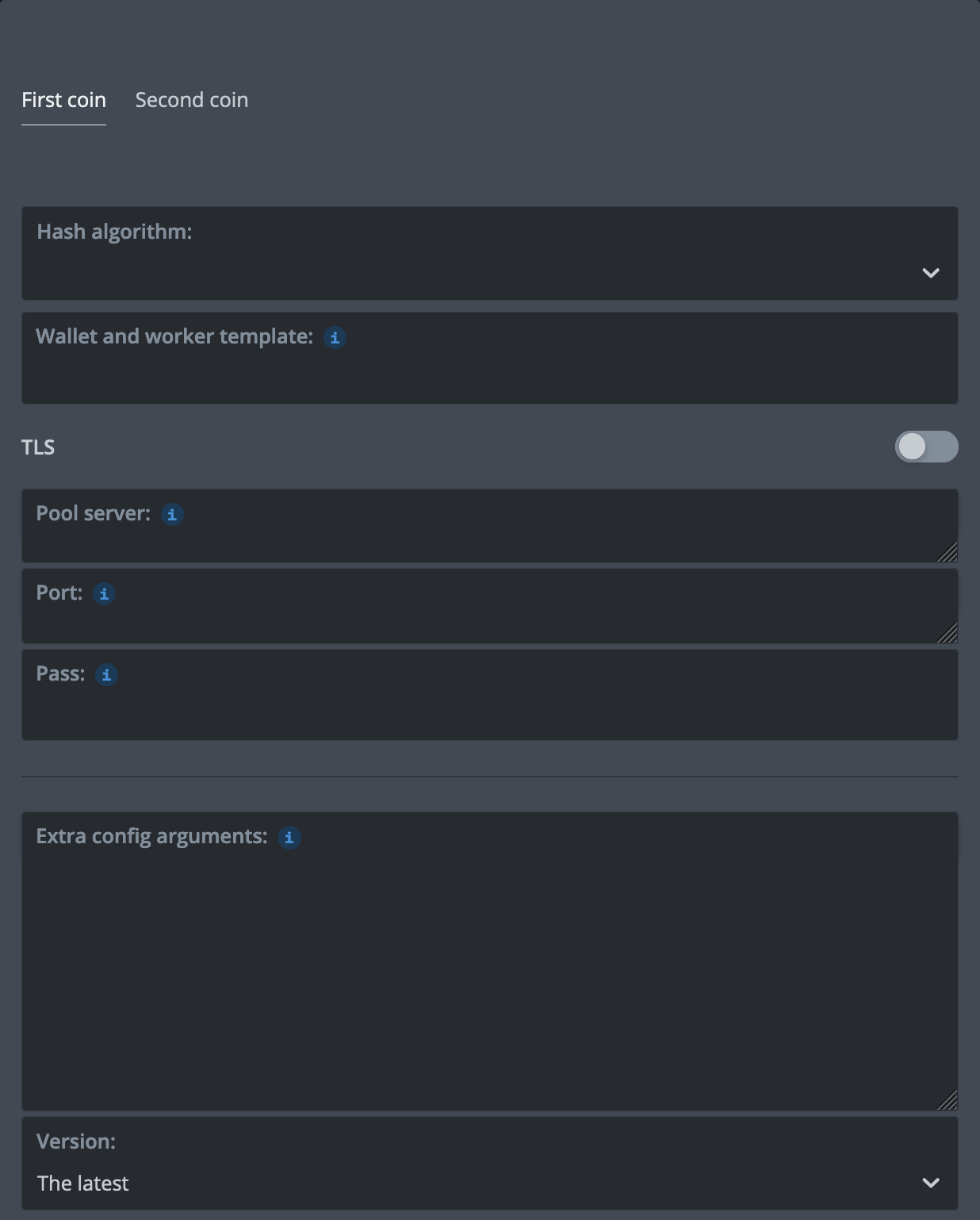
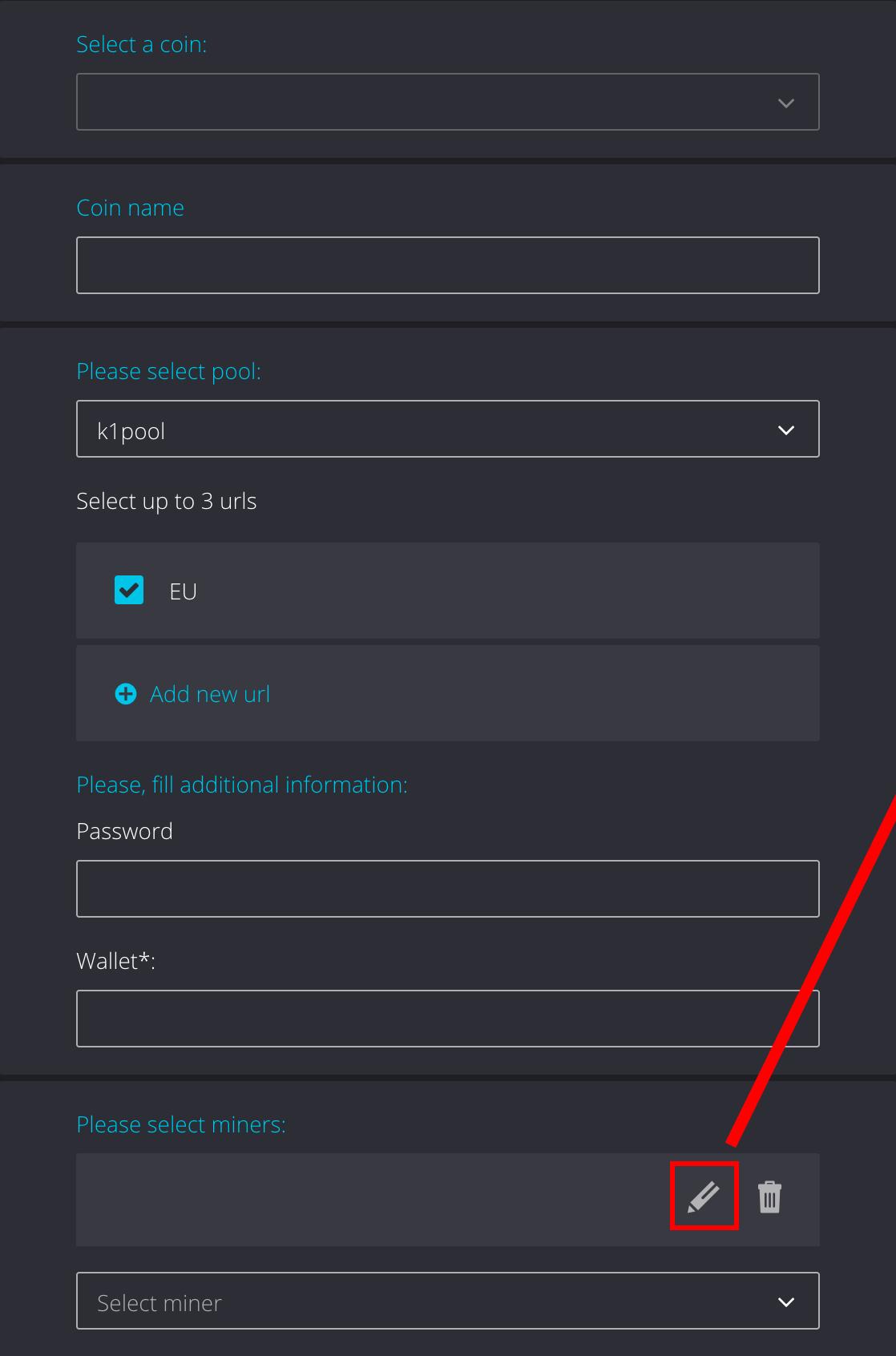
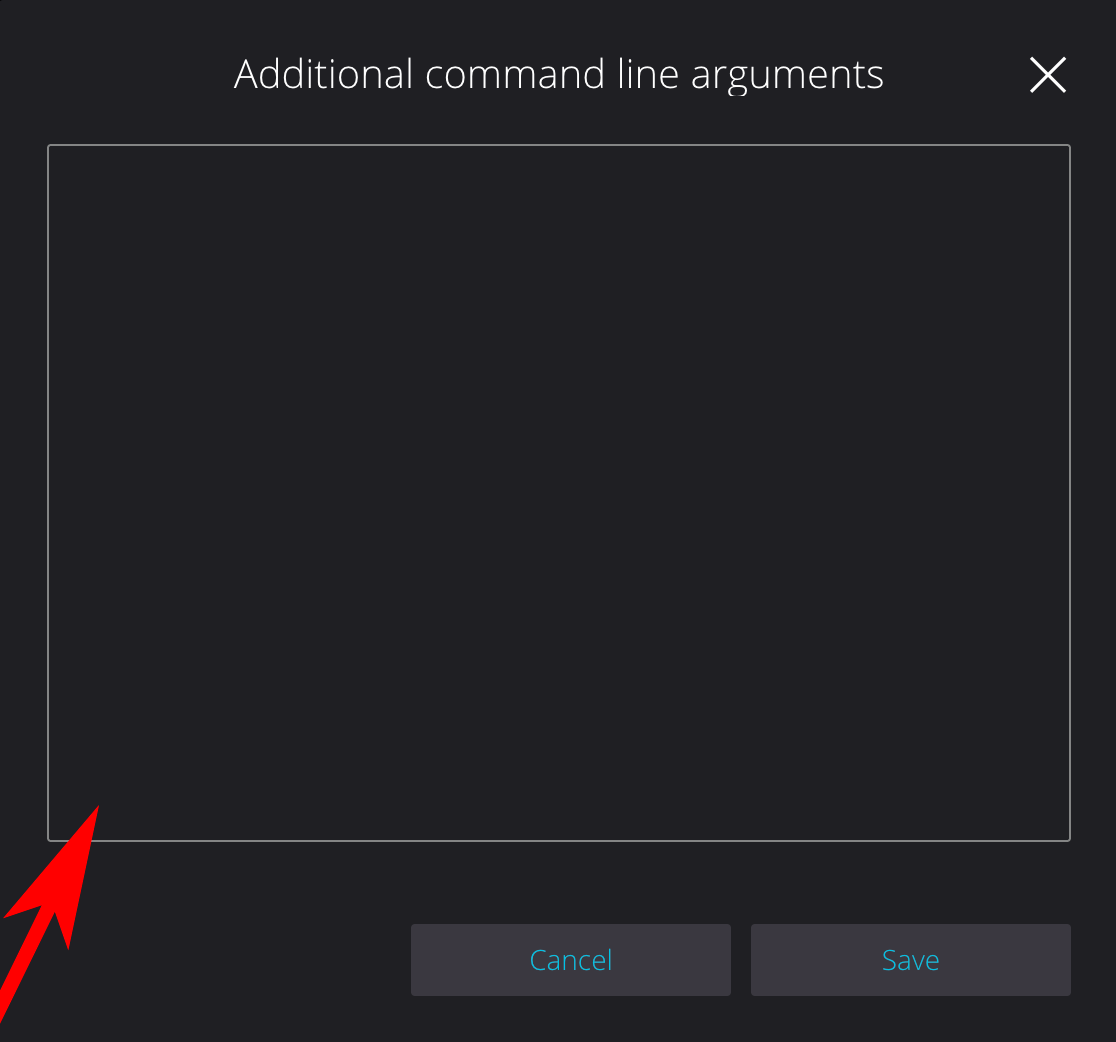
%WAL% - your K1Pool wallet Kr_WALLET, add it in HiveOS%URL_HOST%, %URL_PORT%, %URL% - select Pool 'k1pool' and Server when adding New Flight Sheet
Step 1 - Register
Step 2 - Download mining software
 Windows OS: Download the ready-to-use version of miners (archive password: k1pool).
If you downloaded miners.zip from the link, extract it and replace Kr_WALLET in the .bat file with the account address you received in Step 1.
If you want, you can change RIG_NAME in the .bat file. This rig name will then appear on the miner statistics page. However, this step is optional.
The length of RIG_NAME should not exceed 32 characters and can only include Latin letters, numbers from 0-9, as well as "_" and "-".
Step 3 - Check the mining status
Structured mining data is available on the Dashboard page, where activity across all coins is displayed.
Step 4 - Getting Started with Cryptocurrency Payouts (XEL)
To start receiving payouts from the pool, create a XEL wallet on one of the cryptocurrency exchanges:
After creating a XEL wallet, add it on the Wallets page on our website. Don’t forget to set the minimum payout threshold. The pool fee field can be left empty. By default, the pool fee is 1%. Please confirm your wallet address via email. On the statistics page My stats , you can view your confirmed balance and the progress bar towards the payout threshold. Once the progress bar reaches 100%, the payout will be made according to the payout interval. XEL payouts are processed once every 6 hours.
Additional options:
You can also create a XEL wallet on the official Xelis website and set it up directly on your operating system.